Reading OPC UA Data with ControlCom Edge Server
The ControlCom Connect platform allows fully configuring a onboarded device Edge Server configuration to read OPC UA data from any compliant server (Kepware, Ignition, Siemens, B&R, etc.).
Prerequisites
- This guide requires the ControlCom Edge Server to be onboarded. See our Onboarding Guide for the Edge Server to get started.
- A variable must already exist on the device to receive OPC UA values. See Creating a Variable — you'll need its Topic Property Path when configuring the OPC UA item.
Creating an OPC UA Client
To create a new OPC UA client in ControlCom Connect for device:
- Navigate to Administration > Devices
- Select a onboarded device
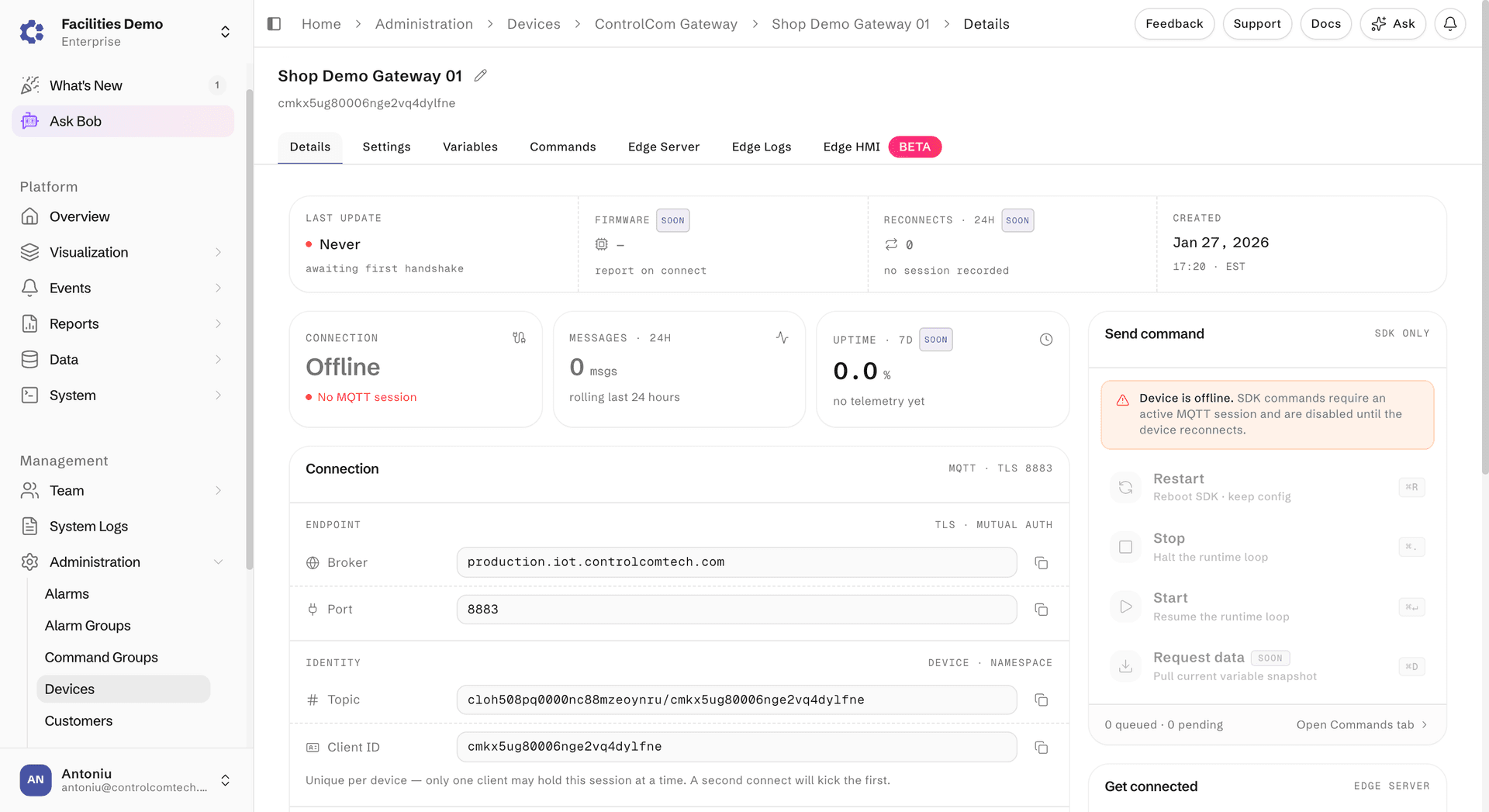
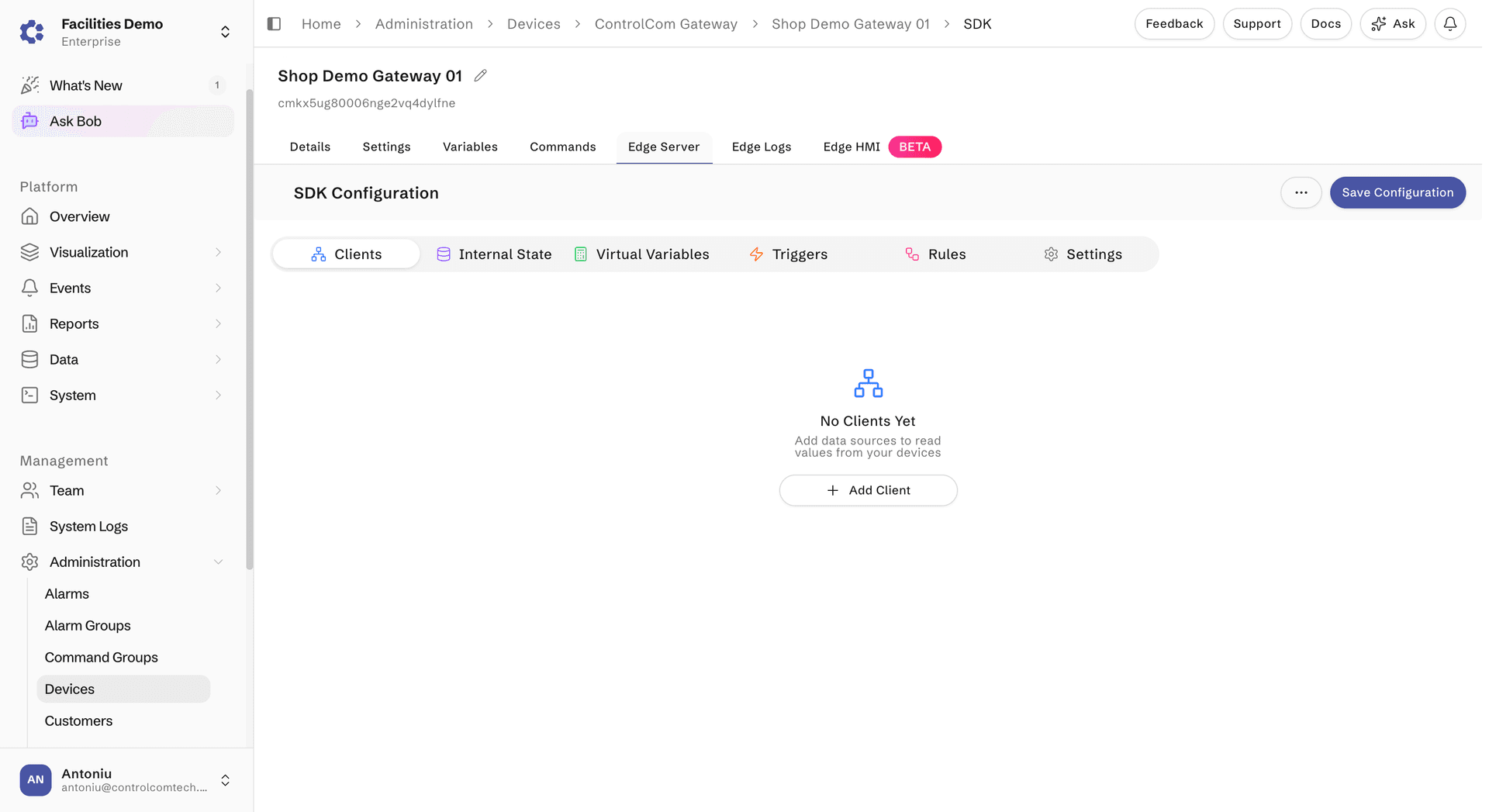
- In the device page, click the Edge Server tab
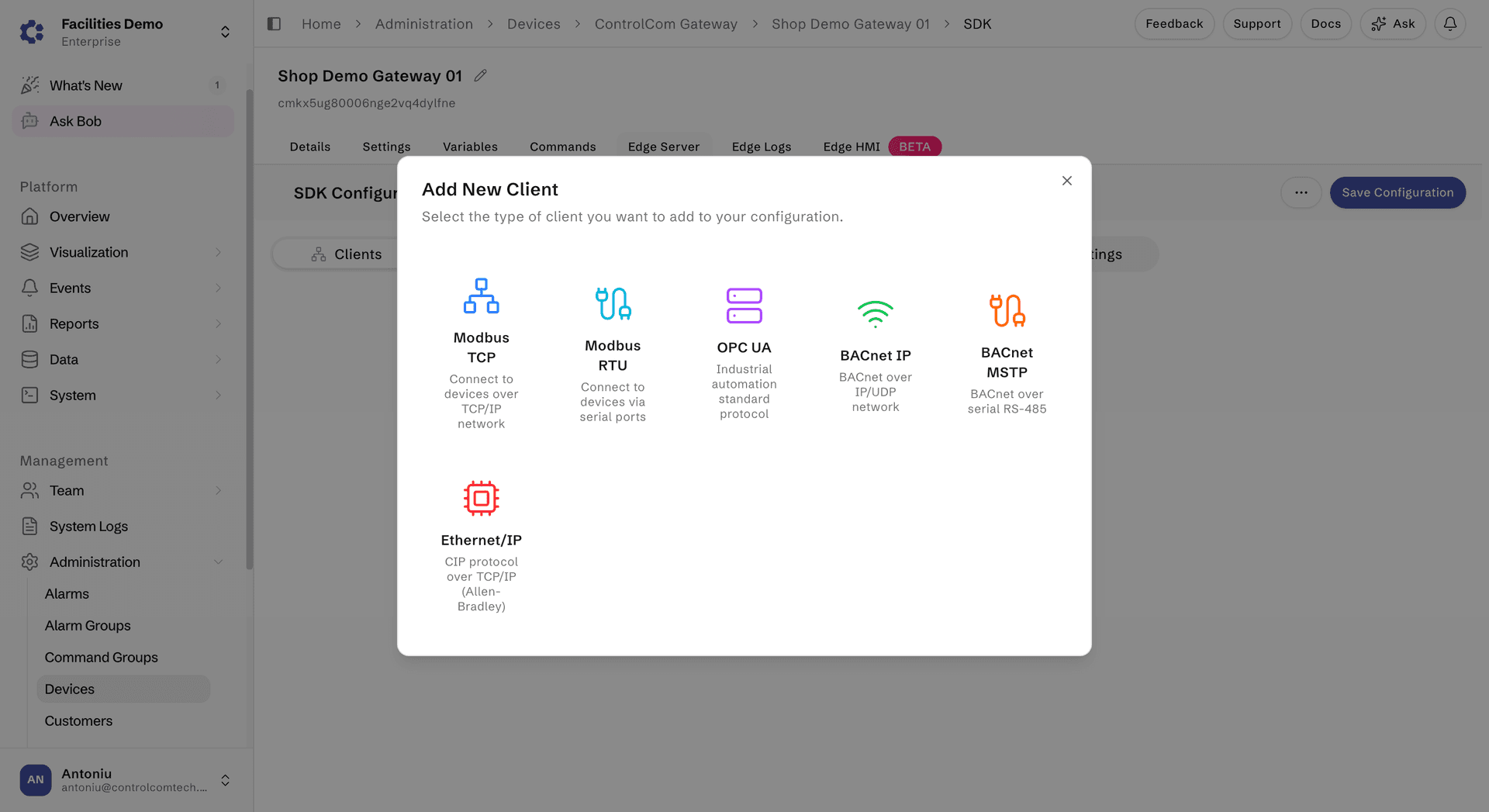
- Click the "+ Add Client" and select OPC UA
- A new subitem will appear called "Clients", select the newly added client.
Connection Sub Menu
- Enter in a friendly name for the OPC UA Client Name
- Enter the OPC Endpoint URL of the server you want to read from, for example
192.168.1.100:4840oropc.tcp://192.168.1.100:4840 - Enable the Enable Client toggle to enable the client
Connection Notes
OPC Endpoint URL is the network address of the OPC UA server. The default OPC UA port is 4840.
Settings Sub Menu
The Settings tab exposes maintenance actions for the client:
- Remove Client removes the OPC UA client from this Edge Server configuration.
- Export Variables downloads the current item list as a CSV (useful for bulk editing).
- Import Variables restores an item list from a previously exported CSV.
Items Sub Menu
- Click the "Add Item" button
- Select the newly added entry in the items list on the left
- Enter the Node ID of the OPC UA node to read from, for example
ns=2;s=Temperatureorns=3;i=1001 - Enter the Attribute ID (defaults to
13for the node's Value attribute — this is the most common). Other common attribute IDs:1— NodeId2— NodeClass3— BrowseName13— Value
- Select the Topic Property Path (this is the Variable created earlier in the guide). The item's data type (number, boolean, string) is determined automatically by the linked platform variable.
- Optionally select a Write Variable to allow the platform to write back to this OPC UA node when a matching command is published.
- On the Scaling tab, set the scale (defaults to 1), offset (defaults to 0), and decimals (defaults to 2). These apply only to
numberitems.- Scale example: if the data is reading 857 but the expected value is 8.57, set scale to
0.01. - Offset is a constant added to the scaled value to shift the final result.
- Scale example: if the data is reading 857 but the expected value is 8.57, set scale to
- On the Misc tab:
- Send if Stale After (ms) — force a publish if the value has not changed in this many milliseconds. Defaults to
10000(10 seconds). - Deadband Percentage — only publish changes greater than this percent of the previous value. Defaults to
5. Only applies tonumberitems.
- Send if Stale After (ms) — force a publish if the value has not changed in this many milliseconds. Defaults to
Saving
After configuring Connection and Items, click the "Save Configuration" button and click "Save" in the confirmation popup.
Deployment
Once the Edge Server has been configured to read from an OPC UA client, the changes can be deployed in a few ways. The Edge Server will pick up its changes on the next boot of the container.
Sending restart command from ControlCom Connect Platform
- Navigate to Administration > Devices
- Select the Device with the new OPC UA configuration
- On the Details tab, click the restart button. This will stop the instance where it is currently running.
Stopping and starting the ControlCom Edge Server manually
This can be done by following the restart commands from the Onboarding Guide of the Edge Server